top of page

_svg.webp)


How to Setup ROMhacks on Windows

Other N64 Emulators:
First, you need to setup an N64 emulator which can at least play the original Legend of Zelda - Ocarina of Time and Majora's Mask. I strongly suggest my Project64 1.6.2 build which comes bundled with all the other apps you will need to patch a Zelda ROM into ROMhacks.


Next in the setup is extracting the emulator to a location on your PC not bound by admin restriction to avoid annoying behavior. Try your Desktop or Documents location. After doing this with my Project64 1.6.2, you need to run the Exception.bat file to set an exception for this directory, highlighted in the image to the left. To confirm you have an exception set for this directory, press your Win key and type "virus" and press Enter to reach the Virus & threat protection settings. Click on Manage Settings, scroll down, click on Add or remove exclusions. Now it will show all locations on your PC which have exceptions from defender scanning. If you see the path to the emulator here, it means you have an exception set and Windows Defender will avoid scanning it so it can function properly. If you have any other apps which malfunction from the defender, set exceptions for those. Shown below.


If you don't see the path for my Project64 1.6.2 in the exceptions list, you should click the Add an exclusion, click Folder, then click on the BruceIV's Project64 1.6.2 folder and click Select Folder to add it as an exception. This is what the Exception.bat is supposed to do for you, to save you these steps so you can use the app without issues and make the setup less troublesome.

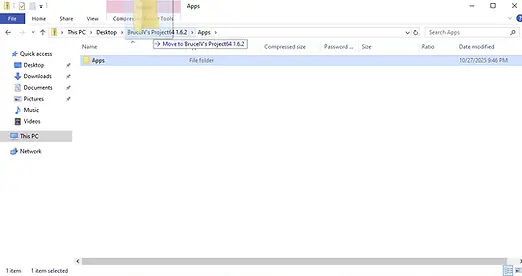
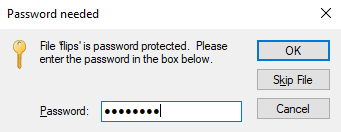
Next, you need to extract and decompress the two .zip files provided in my Project64 1.6.2. If you have decided to use a different emulator, then you will need to manually download Flips Patcher and tool64 for the next part. With those two .zip files, you need to enter a password since they are encrypted with a password prior to this to avoid scanning before you set an exception for this directory. The password is password. So just type password for each .zip and extract their contents in the same location as the .zip they are coming from.


Next, you need to obtain 3 specific N64 Zelda ROMs. The first one you need is Ocarina of Time Version 1.0 US. If you have Ocarina of Time Japanese Version 1.0, you can convert it to Ocarina of Time US Version 1.0 by opening it in the provided HxD app and changing CZLJ to CZLE and saving. The next one you need is commonly known as ZELOOTMA.z64 which can be obtained by applying this patch to a .z64 Ocarina of Time Version 1.0 US ROM.
The last ROM you need is the US version of Majora's Mask for N64 (not the US GameCube/GC version).
To verify you have the correct ROM, open it in the emulator, configure the graphics plugin to make the windowed resolution wider if needed, and view the top bar which displays the game name including Region/Version.
If your Ocarina of Time Version 1.0 US ROM does not have a .z64 extension, follow the next step and then come back here to download and apply the patch for the Master Quest Debug Ocarina of Time ROM you will need!


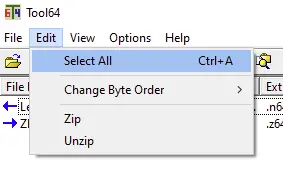
With these ROMs, you need them to have a .z64 extension. If it's anything else, you need to go to Bruce IV's Project64 1.6.2/Apps/tool64 and double click it to open it, then do File->Open... and open the directory where your ROMs are. Do Edit->Select All and then Edit->Change Byte Order->Big Endian.
With your ROMs in Big Endian .z64, it's time to generate ROMhacks!

First you need to obtain patches for the ROMhacks. Since this website is still undergoing reconstruction, you can obtain them from here for now.
To find videos of these hacks, you can search YouTube for now but we will have videos and pages for them later over the next few months and then you can download patches for these hacks directly from this website instead of going through the collection on GitHub.

Personal suggestions:
The Legend of Zelda - Majora's Mask Randomizer.bps
The Legend of Zelda - Pumkin Tower.bps
The Legend of Zelda - Ocarina of Time Dungeon Rush.bps
Zelda64 - Dawn & Dusk.bps
The Legend of Zelda - Ocarina of Time Bedtime Story.bps
The Legend of Zelda - Ocarina of Time Zelda's Birthday.bps
The Legend of Zelda - Sands of Time.bps
The Legend of Zelda - The Missing Link.bps
The Legend of Zelda - The Sealed Palace.bps
3RD QUEST PATCH 0.5.bps
Dark HYRULE Fantasy.bps
Fierce Deity Mask in OoT.bps
If you're going to just setup one ROMhack, open BruceIV's Project64 1.6.2\Apps\flips. If you're going to setup multiple, open BruceIV's Project64 1.6.2\Apps\Flips Auto Patcher 2.0\FlipsAutoPatcher-v2.0.0. You want to apply your patch(es) using these tools with their buttons. It's pretty self explanatory, but I've left a picture guide to the right of this text in case this is new or unfamiliar to you!

See this video at 1:30 mark for how to patch multiple ROMhacks at once using the other patching tool:


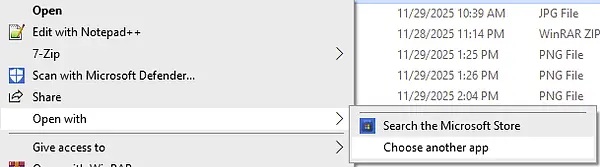
With the ROMhack(s) patched, now you need to right click on one of them, do Open with->Choose another app, scroll down and enable Always use this app to open .z64 files, then select Look for another app on this PC and select Project64 1.6.2\Project64. If it doesn't open with this app but uses a different Project64 installed on your PC, try this again but set it always open with a different app like Notepad first.

You're almost there! Now you just need to go to Options->Settings, then view the ROM Notes tab and view the Plugin Note box. Check if there are any specific plugins mentioned as suggested or required for the game you have loaded in the application. If there are, change to that plugin from the Plugins tab and apply this change by resetting or starting emulation again if needed to.

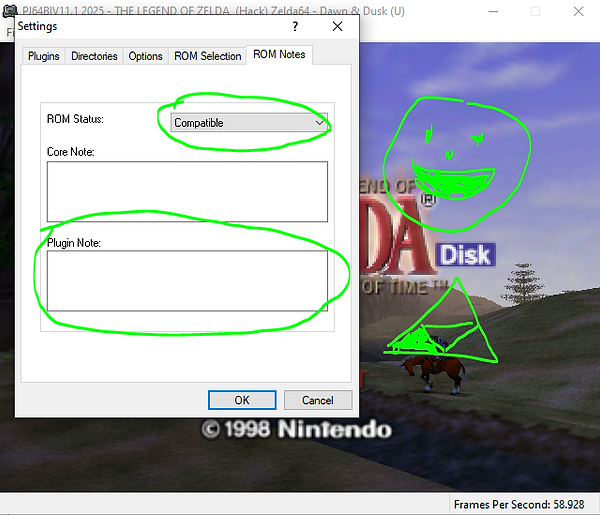
In this example, the "Zelda64 - Dawn & Dusk" ROMhack is loaded and the ROM Notes are checked. Since it is marked as a Compatible game, it does not require any specific plugins to work, and there is no Plugin note to suggest a specific plugin or, in the case of Semicompatible status, state a required plugin. So then you become happy, playing through Ocarina of Time again through ROMhack free DLC! :D
Last but not least, use your desired plugins. Be sure to use the input plugin that works the best for your input device. If using keyboard, N-Rage is suggested for precision aiming using the F and G keys to toggle a gradual direction on the analog stick, you can also use this to walk slowly if trying to cross a thin tightrope or something. For input, try the SDL2 input plugin or N-Rage with XInput. With my Xbox 360 controller, I have the best experience with the SDL2 input plugin. Use Jabo's Input if you desire a fast setup for your controller or if your PC does not work with the other input plugins. For sound, use the Azi sound plugin if your PC supports it so you can toggle the Limit FPS to fast forward. For RSP, generally leave it as-is unless otherwise specified by the Plugin Note. For the video, Jabo's Direct3D8 is usually the best but generally has issues with MQ Debug ROMhacks from 2023 and beyond. Use GLideN64 for those. Use Glide64 for the best overall compatibility but expect minor graphical glitches with it in some way or another when using it where Jabo's Direct3D8 or GLideN64 is advised.
My plugin preferences:


And that's it! You should now have the 3 Zelda ROM's you need in .z64 Big Endian format to apply patches to them, all using the provided apps with my Project64 1.6.2 build. Additionally, all you need to do to open a ROM now is double click on it and it will automatically be opened in the emulator. Furthermore, you can do the open with... trick so that whenever you click on a patch, it is automatically opened in the Flips or Flips Auto Patcher. Now you can benefit from the downloads for Zelda64 ROMhacks (that will eventually be) hosted on this website!


bottom of page